

The Department Deck
The deck is the main navigation for Arcus. It has two parts side by side. The rail is the narrow strip of department icons on the far left. Departments group the modules that belong to the same job:- Home: your dashboard and recently visited pages.
- Sales: accounts, orders, quotes, invoices, and products.
- Operations: inventory, warehouse, fulfillment, shipping, returns, and serial numbers.
- Purchasing: purchase orders, vendors, receiving, and manufacturing work orders.
- Finance: the accounting modules, including AP, AR, journal entries, chart of accounts, bank reconciliation, and financial reports.
- Insights: reports, the analytics dashboard, scheduled reports, the report builder, communications, and documents.
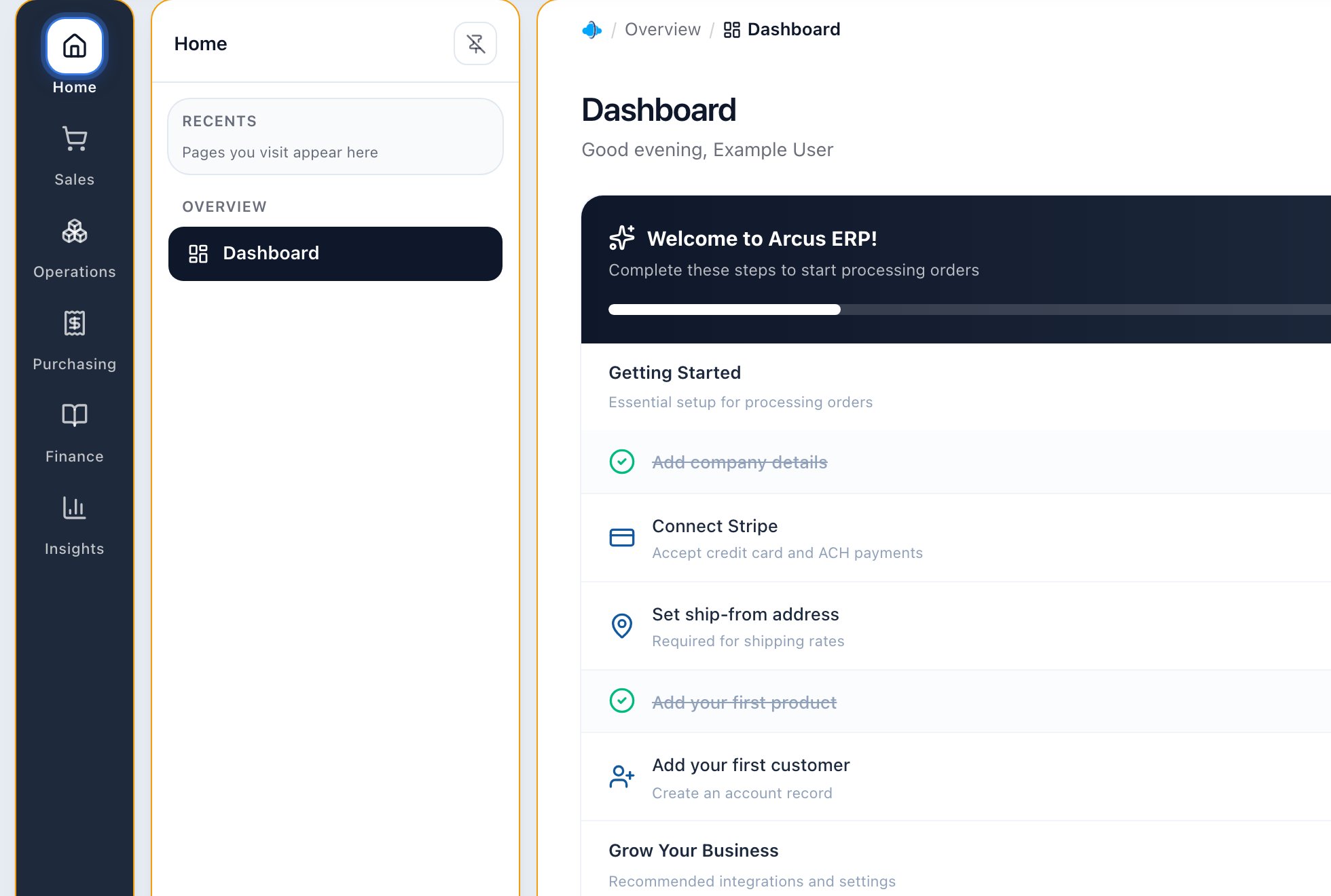
The deck: the department rail on the left, the open panel listing that department's pages, and the page content with its breadcrumb on the right.
The deck is permission-aware: it only shows departments and pages your role can reach. That is a convenience, not the security boundary. The server independently enforces entity, role, permission, and location access every time a page loads or an action runs.
The Workspace Header
The header runs across the top of every page.
The workspace header: the entity and location pill, history arrows, global search with Arcus AI, and the status, messaging, notification, and user controls.
- The workspace pill, holding two separate dropdowns: the entity you are working in and the location your lists are filtered to, followed by a
LIVEorSANDBOXchip. See Switch Entity and Location. - Back and forward arrows for moving through your page history inside Arcus.
- Global search, in the middle, with Arcus AI beside it.
- Status, messages, and notifications on the right. A downloads icon appears here only while you have an export running or ready to collect.
- Your user menu, showing your name and your role in the entity you are currently in.
Global Search
Use the search field in the header to find orders, products, and accounts quickly. The keyboard hint in the field shows the shortcut, so you can open search without reaching for the mouse.Breadcrumbs
The breadcrumb sits at the top of the page content rather than in the header. It shows where the current page lives and lets you step back up without using the deck.List Pages
Most modules begin with a list page. Lists usually include search, filters, status tabs, sortable columns, pagination, row actions, and a create button. The same habits apply across Orders, Products, Accounts, Purchasing, Accounting, Returns, and Fulfillment.- Use search for exact names, IDs, SKUs, order numbers, and account names.
- Use tabs for status-driven work queues.
- Use filters for date range, location, channel, type, payment status, or fulfillment state.
- Click a row to open the detail page.
- Use row actions for quick work only when you are sure you have the correct record.
Detail Pages
Detail pages hold the full record. They usually include a summary, tabs, document links, activity, related records, and actions that change based on status and permissions.- Orders: line items, payments, invoices, fulfillment, shipments, notes, and documents.
- Accounts: overview, addresses, contacts, payment methods, documents, transactions, and communications.
- Products: overview, inventory, pricing, shipping, serials, kit components, and purchasing details.
- AP and accounting: bills, checks, credits, journal entries, bank reconciliation, and reports.
When Navigation Looks Different
- Missing page: ask an admin to review role permissions and entity membership.
- Missing data: check the entity and location in the header pill first, then the status tab, date range, and search filters on the page. See Switch Entity and Location.
- Action disabled: check record status, required setup, permissions, approval rules, and accounting-period controls.
- Wrong environment: confirm the
LIVEorSANDBOXchip on the pill before creating, editing, fulfilling, posting, or paying records.
Related Articles
Switch Entity and Location
Change the company you are working in and the warehouse your lists are filtered to.
Welcome to Arcus ERP
A quick orientation to the Arcus workspace.
Quick Start Guide
Set up the basics and complete your first operational loop.
First Day in Arcus
Confirm environment, learn navigation, find records, and practice safely.
Common Statuses Across Arcus
Understand common order, payment, fulfillment, return, purchasing, accounting, and connector statuses.
Common Error Messages and What To Do
Understand blocked actions, disabled buttons, missing setup, connector errors, and escalation paths.
Settings Overview
Understand the admin surfaces, settings groups, and workflow impact areas.
User Management
Invite users, manage entity access, roles, permissions, location restrictions, PINs, and MFA reset workflows.